KeepArc Download for Mac

Step away.
Keep your Mac active.

KeepArc nudges your cursor to help keep VPNs and other network sessions running. It can also help avoid “Away” status in apps that use system activity.

KeepArc Lock covers your screen while apps, VPNs and transfers can keep running in your active session.

Closed Lid keeps supported MacBooks running with the lid shut, within your chosen power and temperature limits.
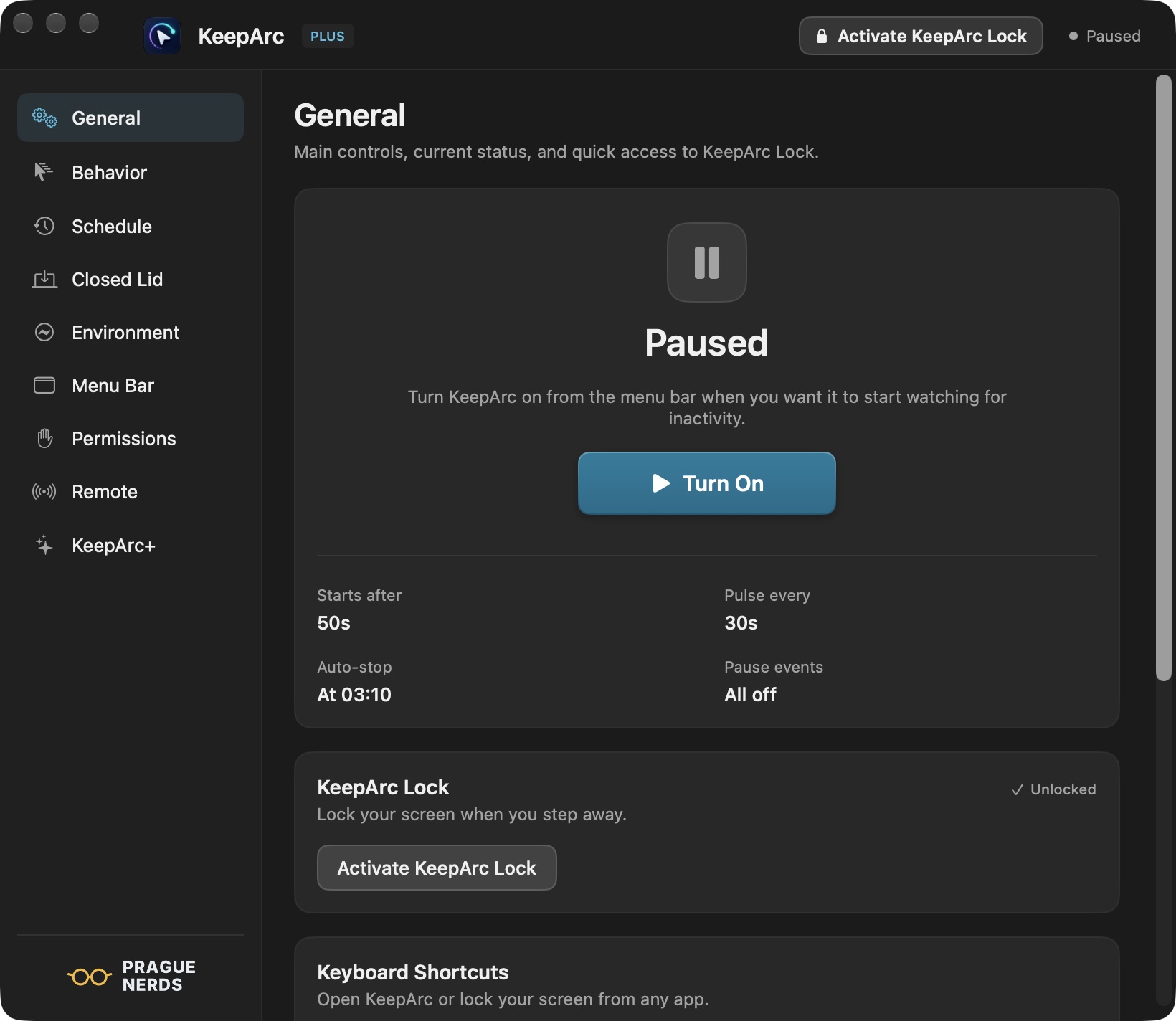
KeepArc General view: Paused, with a prominent azure Turn On button, starts after 50 seconds, pulse every 30 seconds, auto-stop and KeepArc Lock.
Your activity, timing and KeepArc Lock at a glance. Click the image to enlarge.
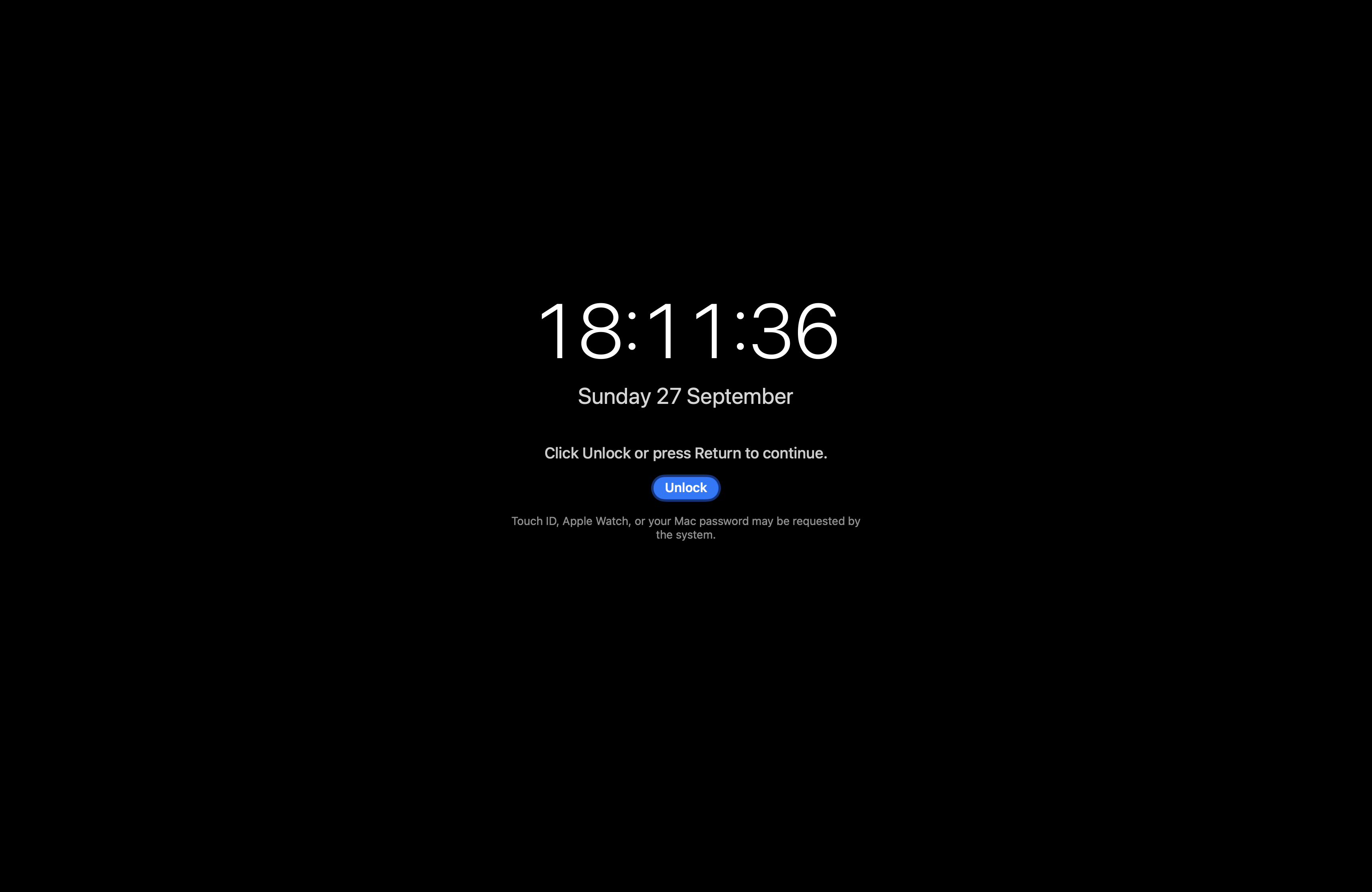
KeepArc Lock screen with a clock, date and Unlock button for macOS authentication.
Screen covered. Your session keeps running. Click the image to enlarge.
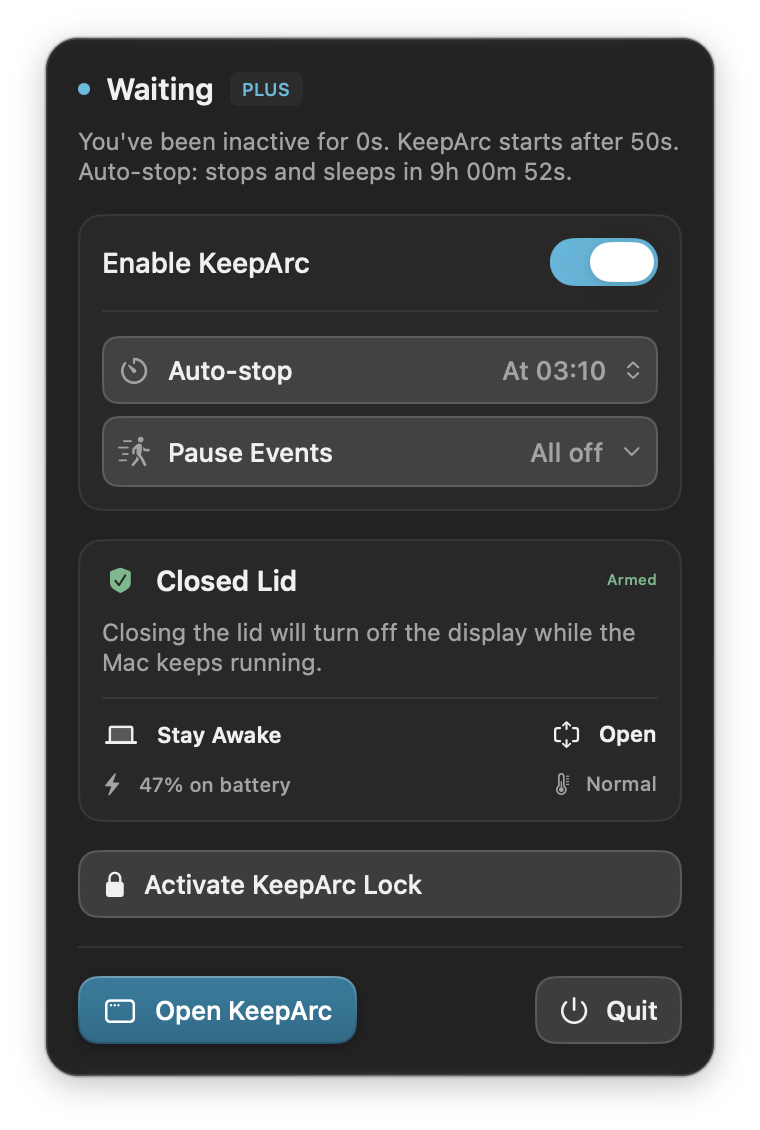
KeepArc menu bar popup with the azure switch on, Waiting status, auto-stop, Pause Events, armed Closed Lid mode and KeepArc Lock.
Quick controls, right in your menu bar. Select the image to enlarge.
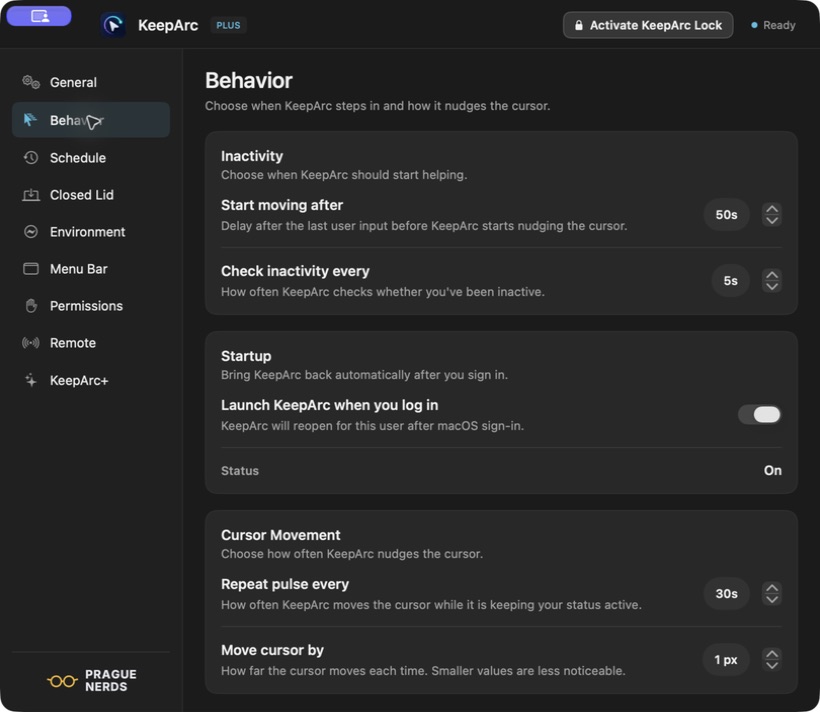
KeepArc Behavior settings show when to start, how often to check inactivity, launch at login, pulse interval and movement distance.
Choose when it starts and how gently it moves. Click the image to enlarge.
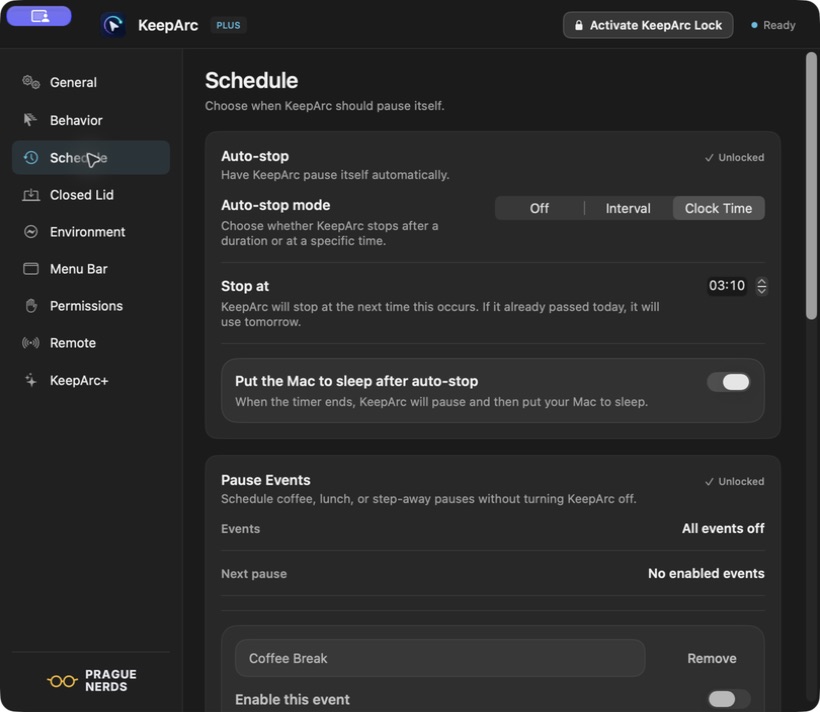
KeepArc Schedule with a 03:10 auto-stop, sleep after auto-stop enabled, and Pause Events currently off.
Set an end time and leave room for breaks. Click the image to enlarge.
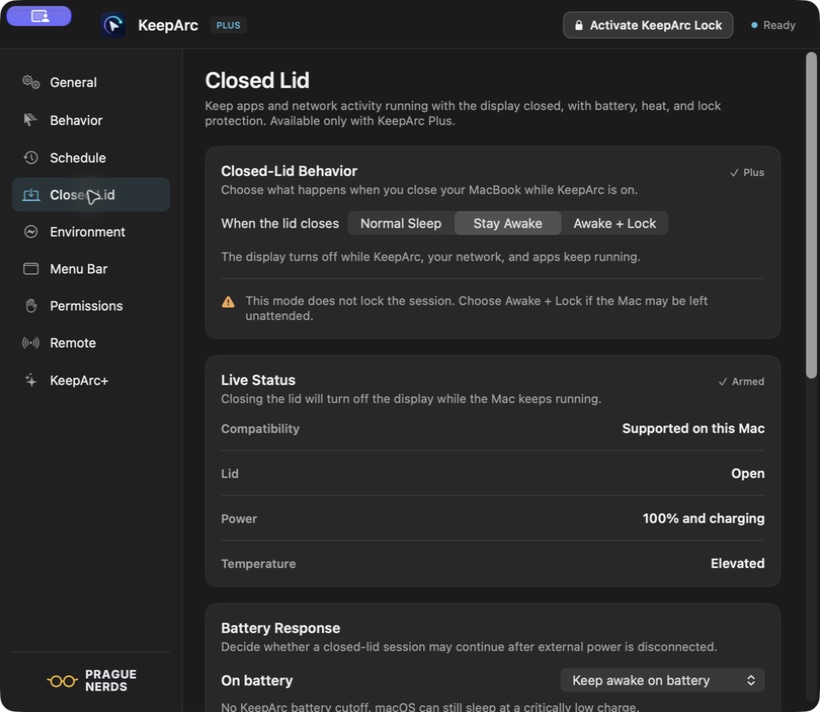
KeepArc Closed Lid settings show Normal Sleep, Stay Awake and Awake + Lock modes, live status, and battery response.
Keep going with the lid closed, with rules you choose. Click the image to enlarge.

KeepArc Lock & Closed Lid

KeepArc LockPlus

Cover every display when you step away from your desk. Your logged-in session stays active, so apps, calls, VPNs and transfers can continue behind it.

  • Activate from the menu bar, a global shortcut or an approved Remote browser.
  • Return through macOS authentication, with Touch ID, Apple Watch or your Mac password when available.
  • Use it for short-break privacy. Choose the built-in macOS lock when you need full system security.
How KeepArc Lock works
Closed LidPlus

Keep a supported MacBook running with its display off and lid closed. Turn KeepArc on, then choose the mode that fits your work.

  • Stay Awake keeps the Mac running with the lid shut.
  • Awake + Lock also activates KeepArc Lock, so the desktop stays covered when you reopen the lid.
  • Restore sleep when unplugged or below your battery limit, and choose how KeepArc responds when your Mac gets too hot.

Normal Sleep is the default. Keep your Mac ventilated; never use closed-lid mode in a bag.

Timing, pauses & stop rules

Wait for real inactivity
Choose how long KeepArc waits after your last keyboard or trackpad input, and how often it checks. Real input stops the nudges when you return.
Choose each nudge
Set the interval between cursor pulses and the movement distance in pixels. Keep the movement as small and as infrequent as your setup needs.
Set an end time
Free includes auto-stop presets from 15 minutes to 4 hours. Plus adds custom durations up to 12 hours or a specific clock time, with the option to sleep your Mac when the timer ends.
Build in breaks Plus
Save up to five named Pause Events. Start after activation or at a clock time, set each pause’s duration and repeat interval, and optionally shift its start earlier or later. Toggle saved events without deleting them. Explore Pause Events
Pause on low battery Plus
Pause cursor activity when your Mac is unplugged and its battery drops below the level you choose. Keep an everyday session from running down the battery unnoticed.
Run on selected Wi-Fi Plus
Limit cursor activity to the networks you allow, such as your home Wi-Fi on home-office days. KeepArc asks for Location access only when you use this rule.

Control your Mac
from another device.

With KeepArc Plus, open a share link or scan a QR code on your phone, tablet or another computer. Remote stays off until you enable it.

  1. Enable Remote on your Mac.Open the share link or scan its QR code.
  2. Check the code and approve.Each new browser needs approval on the Mac.
  3. Control it from your browser.Commands and status use an end-to-end encrypted session.
Explore KeepArc Remote
KeepArc, wherever you are
Turn cursor activity on or off, change auto-stop, toggle saved Pause Events and activate KeepArc Lock.
A few useful Mac controls, too
Lock macOS, turn off the displays, mute sound or run Apple Shortcuts you have individually allowed in KeepArc.
See what your Mac is doing
Check KeepArc state, battery and charging, CPU use, sound, the auto-stop deadline, and active or upcoming pauses.

Remote provides these specific controls; it does not stream your screen or give general keyboard, mouse or file access. Remember trusted browsers and remove them later, or use your own compatible Remote host.

macOS integrations

Launch at login
Have KeepArc open automatically when you sign in to macOS.
Global keyboard shortcuts
Choose system-wide shortcuts to open KeepArc or activate KeepArc Lock, even when another app is in front.
Hide during calls and sharing Plus
Choose whether the menu bar icon hides when macOS shows screen sharing, camera, microphone or call activity. Set how often KeepArc checks. See visibility controls
Your menu bar, your Dock
Hide the menu bar icon manually or keep KeepArc in the Dock. Hiding the icon does not change whether cursor activity is on.
A way back from a crowded menu bar Plus
Let KeepArc add a Dock fallback when it cannot confirm that its menu bar icon is visible. Your global shortcut remains another way back.
Check for updates in the app
See your installed version and check for a newer release from KeepArc’s General section.

KeepArc Free & Plus

No subscription is planned. Free covers everyday cursor activity; Plus adds more ways to automate it.

KeepArc Free

€0

For a simple start and stop.

  • Activity after real inactivity
  • Adjustable timing and cursor distance
  • Auto-stop presets: 15 minutes to 4 hours
  • Menu bar and optional Dock access

KeepArc Plus

€4.99 planned one-time upgrade

For routines with a few more rules.

  • Custom end times and scheduled pauses
  • Battery and selected Wi-Fi rules
  • KeepArc Lock and visibility automation
  • Closed-lid mode with power and temperature rules
  • Remote access from approved browsers

Try all of Plus during launch. It’s included for everyone through November 30, 2026. Download the same app to get started.

Privacy & permissions

Your timing, schedules and Wi-Fi list are stored on your Mac. Cursor activity uses the system’s idle time, not what you type.

Accessibility permission lets KeepArc move the cursor. Location is requested only if you use the selected-Wi-Fi rule.

If you turn on Remote, approved browsers receive status and send commands through end-to-end encrypted sessions. You approve each new browser on your Mac.

Before you download.

How do I get started?
  1. Download KeepArc, open the disk image and move the app to Applications.
  2. Open KeepArc and allow Accessibility in System Settings → Privacy & Security → Accessibility when prompted.
  3. Choose your timing and auto-stop, then turn KeepArc on.
Will it move the cursor while I’m working?

No. Movement starts only after your chosen inactivity period. Real keyboard or trackpad input stops the nudges.

Will it keep every network connection open?

Keeping your Mac active helps avoid sleep-related interruptions to transfers, SSH and VPN sessions. KeepArc Lock covers your screen while the logged-in session keeps running. Neither can override server timeouts, network outages or your organization’s policies.

How do I use Closed Lid mode?

With Plus, turn KeepArc on and select Stay Awake or Awake + Lock in Closed Lid settings. The latter also starts KeepArc Lock, so the desktop stays covered when you reopen the lid. Normal Sleep is the default.

You can restore sleep when unplugged, below a battery limit or when the Mac gets too hot. Keep your Mac ventilated; never use this mode in a bag. Support can vary by Mac and macOS version.

Does it keep Teams or Slack showing “Available”?

KeepArc produces cursor activity after inactivity. Apps that use system idle time may reflect that activity, but presence also depends on the app’s own rules, your settings and organization policies. KeepArc does not guarantee a particular status.

Is KeepArc Lock the same as locking my Mac?

No. It is an app-level screen cover while your session stays running. System or administrator actions can bypass it. Use the built-in macOS lock for full system security. Read about KeepArc Lock
Download KeepArc for macOS.

Version 1.15 · Released November 3, 2026

macOS 13 Ventura or later · Apple Silicon & Intel

Download for macOS